
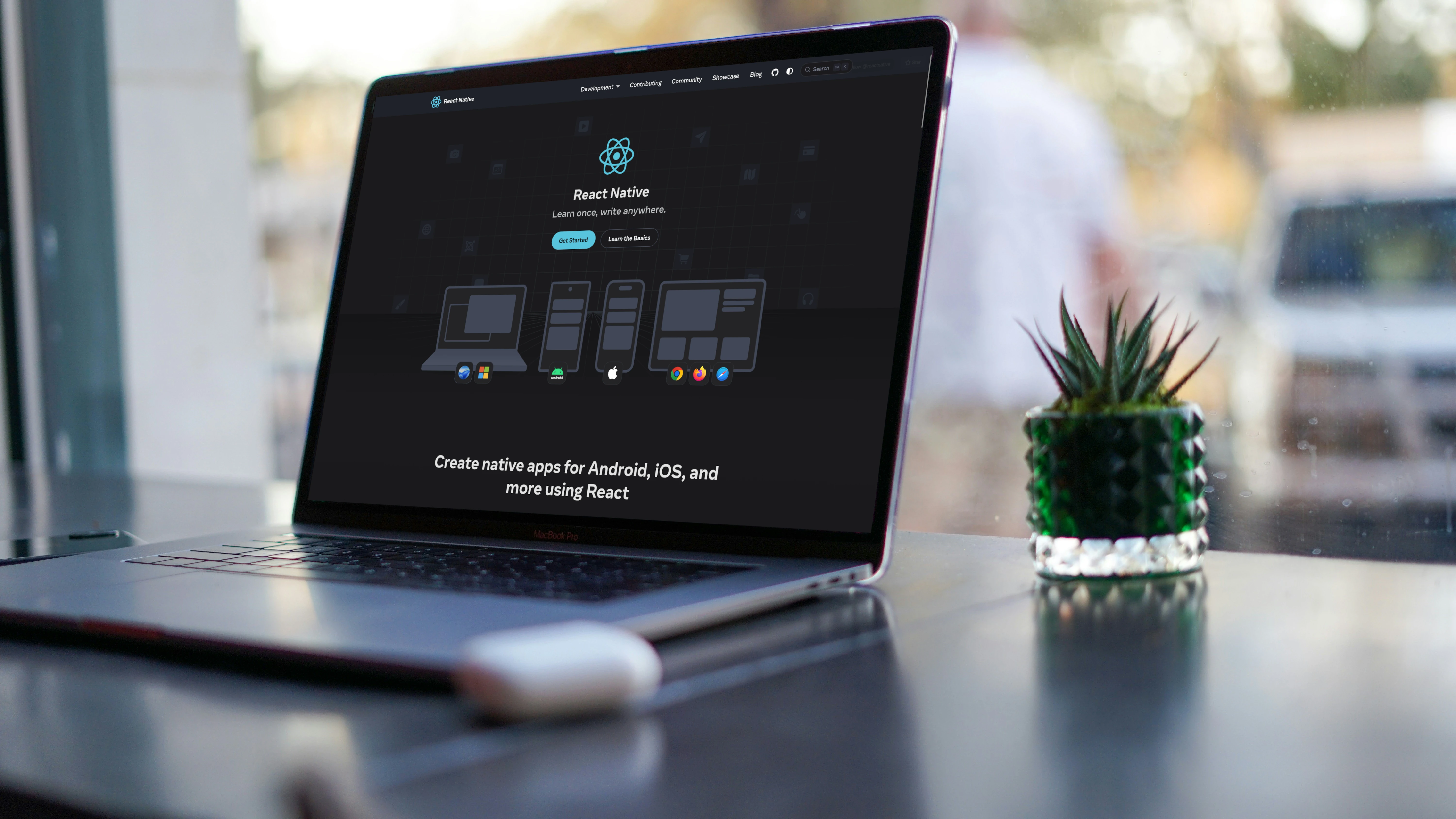
A couple years ago I had a side project that needed an Android app. Not a web app, a real one, on the Play Store. I’d been writing React for years and dreading the idea of learning Kotlin from scratch. Then someone mentioned React Native and I thought, wait, I can just… use what I already know?
Turns out, mostly yes. The learning curve was way gentler than I expected, though there were a few walls I walked into face-first. If you’re a React developer thinking about going native, here’s what I wish someone had told me upfront.
Why React Native Actually Makes Sense for React Developers
I’ll skip the marketing pitch. The practical reasons are simple:
- You already know React components, hooks, and TypeScript. That’s not 80% of the way, it’s honestly more like 90%.
- You get native performance. Not WebView-wrapped web pages, actual native UI primitives.
- One codebase for Android and iOS (and yes, web too if you want).
- Hot reloading works basically the same way you’re used to.
Big companies ship production apps with this, Facebook, Instagram, Uber. It’s not a toy.
Setting Up Your Dev Environment
This is the part where most web developers stumble, so I’ll be specific.
Install Android Studio
Download Android Studio. During installation, make sure you grab:
- Android SDK
- Android SDK Platform (API 34 or whatever’s latest)
- Android Virtual Device (your emulator)
- Intel HAXM if you’re on an Intel CPU, makes emulation way faster
Then set your environment variables:
# Add to ~/.bashrc or ~/.zshrc
export ANDROID_HOME=$HOME/Android/Sdk
export PATH=$PATH:$ANDROID_HOME/emulator
export PATH=$PATH:$ANDROID_HOME/platform-tools
export PATH=$PATH:$ANDROID_HOME/tools/bin
Verify Everything Works
adb devices  # Should list connected devices/emulators
emulator -list avds  # List available Android Virtual Devices
I spent an embarrassingly long time debugging a “device not found” error once. It was because I’d forgotten to start the emulator. Don’t be me.
Create and Run Your Project
npx @react-native-community/cli init MyAndroidApp --template react-native-template-typescript
cd MyAndroidApp
Or with Bun:
bunx @react-native-community/cli init MyAndroidApp --template react-native-template-typescript
cd MyAndroidApp
Then fire it up:
# Terminal 1: Start Metro bundler
npm start

# Terminal 2: Run on Android
npm run android
The Stuff That’s Different from Web React
This is where it gets real. Your React brain will try to do web things, and React Native will look at you funny.
No HTML Elements
Every <div> becomes a <View>. Every <p> becomes a <Text>. Here’s the mapping you’ll reach for constantly:
| Web | React Native |
|---|---|
<div> | <View> |
<span>, <p>, <h1> | <Text> |
<button> | <TouchableOpacity> or <Button> |
<img> | <Image> |
<input> | <TextInput> |
<ul>, <ol> | <FlatList> or <ScrollView> |
// Web React
<div className="container">
  <h1>Hello</h1>
  <button onClick={handleClick}>Click</button>
</div>

// React Native
<View style={styles.container}>
  <Text style={styles.heading}>Hello</Text>
  <TouchableOpacity onPress={handleClick}>
    <Text>Click</Text>
  </TouchableOpacity>
</View>
The biggest gotcha for me: you can’t just throw text loose inside a <View>. It must be wrapped in <Text>. Your app will crash otherwise, and the error message won’t be super helpful about telling you why.
Styling: Goodbye CSS, Hello StyleSheet
No CSS files. No class names. No inheritance. Just JavaScript objects:
import { StyleSheet, View, Text } from 'react-native';

const styles = StyleSheet.create({
  container: {
    flex: 1,
    backgroundColor: '#fff',
    padding: 16,
  },
  text: {
    fontSize: 16,
    fontWeight: '600',
    color: '#333',
  },
});

export function MyComponent() {
  return (
    <View style={styles.container}>
      <Text style={styles.text}>Styled Text</Text>
    </View>
  );
}
A few things that tripped me up:
flexboxis the default layout. No need fordisplay: flex.- There’s no CSS inheritance. Every
<Text>needs its own style. - Units are density-independent pixels. Just use numbers, no
pxsuffix. - The property set is way smaller than CSS. You’ll miss
gapless than you think.
Navigation: React Navigation, Not React Router
There’s no URL bar. Routing works differently here. You’ll use React Navigation:
npm install @react-navigation/native @react-navigation/native-stack
npm install react-native-screens react-native-safe-area-context
import { NavigationContainer } from '@react-navigation/native';
import { createNativeStackNavigator } from '@react-navigation/native-stack';
const Stack = createNativeStackNavigator();
function App() {
return (
<NavigationContainer>
<Stack.Navigator>
<Stack.Screen name="Home" component={HomeScreen} />
<Stack.Screen name="Details" component={DetailsScreen} />
</Stack.Navigator>
</NavigationContainer>
);
}And navigating between screens:
function HomeScreen({ navigation }) {
  return (
    <TouchableOpacity onPress={() => navigation.navigate('Details', { id: 123 })}>
      <Text>Go to Details</Text>
    </TouchableOpacity>
  );
}
The mental model shift: instead of routes and URLs, you’re thinking in stacks and navigators. It’s closer to how mobile apps actually work, which makes sense once you stop fighting it.
Platform-Specific Code
Sometimes you need to do something only on Android:
import { Platform, StyleSheet } from 'react-native';

// Inline platform check
const styles = StyleSheet.create({
  container: {
    paddingTop: Platform.OS === 'android' ? 24 : 0,
  },
});

// Platform-specific imports
if (Platform.OS === 'android') {
  // Android-specific logic
}

// Platform file extensions
// Component.android.tsx - only for Android
// Component.ios.tsx - only for iOS
// Component.tsx - shared
The Core Components You’ll Actually Use
import {
  View,           // Container (like div)
  Text,           // All text must be wrapped
  TextInput,      // Input fields
  TouchableOpacity, // Touchable buttons
  Image,          // Images
  ScrollView,     // Scrollable container
  FlatList,       // Performant lists
  ActivityIndicator, // Loading spinner
  SafeAreaView,   // Respects device notches
} from 'react-native';
Hooks Work Exactly Like You’d Expect
All your standard React hooks are identical:
import { useState, useEffect, useCallback, useMemo, useRef, useContext } from 'react';React Native adds a couple of its own:
import { useWindowDimensions, useColorScheme } from 'react-native';

function MyComponent() {
  const { width, height } = useWindowDimensions();
  const colorScheme = useColorScheme(); // 'light' or 'dark'
}
TypeScript in React Native
This is the easy part, TypeScript works exactly like you expect:
import { View, Text, TouchableOpacity } from 'react-native';

interface ButtonProps {
  title: string;
  onPress: () => void;
  disabled?: boolean;
  variant?: 'primary' | 'secondary';
}

export function CustomButton({ title, onPress, disabled = false }: ButtonProps) {
  return (
    <TouchableOpacity
      onPress={onPress}
      disabled={disabled}
      style={[styles.button, disabled && styles.disabled]}
    >
      <Text>{title}</Text>
    </TouchableOpacity>
  );
}
You can even type your navigation params, which saves a ton of debugging:
type RootStackParamList = {
  Home: undefined;
  Details: { userId: string; name: string };
  Settings: undefined;
};

// Usage with typed navigation
function HomeScreen({ navigation }: NativeStackScreenProps<RootStackParamList, 'Home'>) {
  return (
    <TouchableOpacity onPress={() => navigation.navigate('Details', { userId: '123', name: 'John' })}>
      <Text>View Details</Text>
    </TouchableOpacity>
  );
}
A Complete Example: Counter App
Here’s a working app to tie it all together:
// App.tsx
import React, { useState } from 'react';
import {
  SafeAreaView,
  StyleSheet,
  View,
  Text,
  TouchableOpacity,
  StatusBar,
} from 'react-native';

interface CounterButtonProps {
  onPress: () => void;
  label: string;
  disabled?: boolean;
}

function CounterButton({ onPress, label, disabled = false }: CounterButtonProps) {
  return (
    <TouchableOpacity
      onPress={onPress}
      disabled={disabled}
      style={[styles.button, disabled && styles.buttonDisabled]}
    >
      <Text style={[styles.buttonText, disabled && styles.buttonTextDisabled]}>
        {label}
      </Text>
    </TouchableOpacity>
  );
}

export default function App() {
  const [count, setCount] = useState<number>(0);

  return (
    <SafeAreaView style={styles.container}>
      <StatusBar barStyle="dark-content" />
      <View style={styles.content}>
        <Text style={styles.title}>Counter App</Text>
        <Text style={styles.count}>{count}</Text>
        <View style={styles.buttonRow}>
          <CounterButton
            onPress={() => setCount(prev => prev - 1)}
            label="-1"
            disabled={count <= 0}
          />
          <CounterButton
            onPress={() => setCount(prev => prev + 1)}
            label="+1"
          />
          <CounterButton
            onPress={() => setCount(0)}
            label="Reset"
          />
        </View>
      </View>
    </SafeAreaView>
  );
}

const styles = StyleSheet.create({
  container: {
    flex: 1,
    backgroundColor: '#f5f5f5',
  },
  content: {
    flex: 1,
    justifyContent: 'center',
    alignItems: 'center',
  },
  title: {
    fontSize: 28,
    fontWeight: '700',
    marginBottom: 32,
    color: '#333',
  },
  count: {
    fontSize: 72,
    fontWeight: '300',
    marginBottom: 48,
    color: '#007AFF',
  },
  buttonRow: {
    flexDirection: 'row',
    gap: 16,
  },
  button: {
    backgroundColor: '#007AFF',
    paddingHorizontal: 24,
    paddingVertical: 12,
    borderRadius: 8,
  },
  buttonDisabled: {
    backgroundColor: '#ccc',
  },
  buttonText: {
    color: '#fff',
    fontSize: 18,
    fontWeight: '600',
  },
  buttonTextDisabled: {
    color: '#666',
  },
});
Debugging and Dev Tools
Metro Bundler
Keep it running. It’s your JavaScript bundler, the equivalent of webpack/Vite dev server. It serves your code to the app and handles hot reloading.
React Native Debugger
# Shake device or press Cmd+D (iOS) / Ctrl+M (Android)
# Select "Debug" to open Chrome DevTools
Flipper
This one’s worth installing for real debugging, network inspection, database viewer, layout inspector, the works:
npm install -g react-native-flipperQuick Commands
// Reload app
// Android: Ctrl+M reloads the app

// Enable Hot Reload
// Shake device to enable Hot Reload

// Open Dev Menu
// Android: Ctrl+M or adb shell input keyevent 82 opens the Dev Menu
Accessing Native Android Features
Camera
npm install react-native-vision-cameraLocation
npm install @react-native-community/geolocationStorage
npm install @react-native-async-storage/async-storageimport AsyncStorage from '@react-native-async-storage/async-storage';
// Save data
await AsyncStorage.setItem('@key', 'value');
// Retrieve data
const value = await AsyncStorage.getItem('@key');Permissions
Android requires runtime permissions. Use react-native-permissions:
npm install react-native-permissionsimport { check, request, PERMISSIONS, RESULTS } from 'react-native-permissions';
async function requestCameraPermission() {
const result = await check(PERMISSIONS.ANDROID.CAMERA);
if (result === RESULTS.DENIED) {
const granted = await request(PERMISSIONS.ANDROID.CAMERA);
return granted === RESULTS.GRANTED;
}
return result === RESULTS.GRANTED;
}I spent a whole afternoon debugging a permissions issue once, turns out the permission string was wrong and React Native just silently failed. If something doesn’t work and there’s no error, check your permission strings first.
Building for Production
Generate a Signed APK
cd android

# Generate keystore (first time only)
keytool -genkey -v -keystore my-release-key.keystore -alias my-key-alias -keyalg RSA -keysize 2048 -validity 10000

# Configure gradle.properties
MYAPP_UPLOAD_STORE_FILE=my-release-key.keystore
MYAPP_UPLOAD_KEY_ALIAS=my-key-alias
MYAPP_UPLOAD_STORE_PASSWORD=*****
MYAPP_UPLOAD_KEY_PASSWORD=*****

# Build release APK
./gradlew assembleRelease
Build Android App Bundle (for Play Store)
cd android
./gradlew bundleRelease
Output: android/app/build/outputs/bundle/release/app-release.aab
Optimize Your App
// Enable ProGuard in android/app/build.gradle
def enableProguardInReleaseBuilds = true

// Use Hermes engine (enabled by default in new versions)
// Better performance and smaller app size
The Pitfalls I Hit
Text Must Be Wrapped
// [ ] Wrong
<View>Hello World</View>

// [x] Correct
<View><Text>Hello World</Text></View>
This one’s annoying but non-negotiable. React Native will crash and you’ll spend ten minutes wondering why.
Flexbox Defaults to Column
// React Native defaults to flexDirection: 'column'
// Explicitly set for row layouts
<View style={{ flexDirection: 'row' }}>
If you’re used to CSS flexbox where row is default, this catches you constantly.
Image Dimensions Are Required
// [ ] May not render without dimensions
<Image source={require('./image.png')} />

// [x] Specify dimensions
<Image source={require('./image.png')} style={{ width: 100, height: 100 }} />
Keyboard Handling
The keyboard covers your inputs on mobile (obviously). Fix it:
import { KeyboardAvoidingView, Platform } from 'react-native';

<KeyboardAvoidingView
  behavior={Platform.OS === 'ios' ? 'padding' : 'height'}
  style={{ flex: 1 }}
>
  {/* Your form inputs */}
</KeyboardAvoidingView>
Recommended Project Structure
src/
├── components/          # Reusable UI components
│   ├── Button/
│   │   ├── Button.tsx
│   │   ├── Button.styles.ts
│   │   └── Button.types.ts
│   └── Card/
├── screens/             # Screen components
│   ├── HomeScreen.tsx
│   └── DetailsScreen.tsx
├── navigation/          # Navigation configuration
│   └── AppNavigator.tsx
├── hooks/               # Custom hooks
│   └── useAuth.ts
├── services/            # API calls, external services
│   └── api.ts
├── store/               # State management
│   └── store.ts
├── types/               # TypeScript type definitions
│   └── index.ts
├── utils/               # Utility functions
│   └── helpers.ts
└── assets/              # Images, fonts, etc.
Libraries Worth Installing
| Category | Library |
|---|---|
| Navigation | @react-navigation/native |
| State Management | zustand, redux-toolkit, or React Context |
| HTTP Client | axios, tanstack-query |
| Forms | react-hook-form, formik |
| Validation | zod, yup |
| Icons | react-native-vector-icons |
| UI Components | react-native-paper, native-base |
| Animations | react-native-reanimated |
| Testing | jest, @testing-library/react-native |
Testing Your App
npm install --save-dev @testing-library/react-native jest// __tests__/Counter.test.tsx
import { render, fireEvent } from '@testing-library/react-native';
import App from '../App';
describe('Counter App', () => {
it('increments counter on button press', () => {
const { getByText } = render(<App />);
const incrementButton = getByText('+1');
fireEvent.press(incrementButton);
expect(getByText('1')).toBeTruthy();
});
});Run tests:
npm testWhat I’d Do Next
If I were starting fresh, I’d build a real app immediately, not a todo list, something I’d actually use. Learn native modules when you hit a wall. Get comfortable with react-native-reanimated for animations that don’t feel janky. And follow Google’s guidelines carefully when you’re ready to ship to the Play Store.
The one thing I’d add: if you’re prototyping or building something smaller, pair React Native with Expo. It gives you pre-configured native modules, over-the-air updates, and way less setup friction. I used it for a quick internal tool and it saved me hours of build configuration headaches.
Your web dev instincts carry further than you’d think. The hardest part isn’t the code, it’s unlearning the assumption that everything needs to be a <div>.
Member discussion
0 commentsStart the conversation
Become a member of >hacksubset_ to start commenting.
Already a member? Sign in